
179 lines
5.7 KiB
Markdown
Executable File
179 lines
5.7 KiB
Markdown
Executable File
# ngImgCrop
|
|
|
|
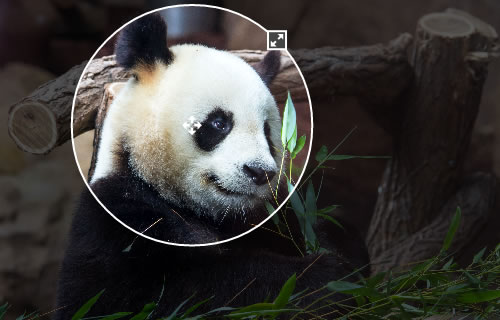
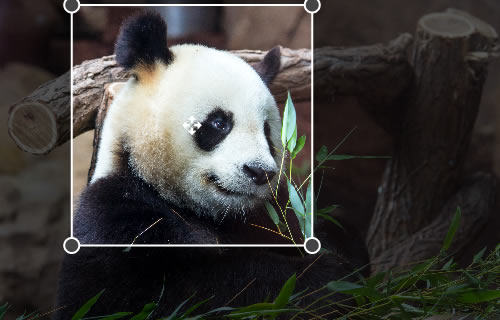
Simple Image Crop directive for AngularJS. Enables to crop a circle or a square out of an image.
|
|
|
|
## Screenshots
|
|
|
|
|
|
|
|
|
|
|
|
## Live demo
|
|
|
|
[Live demo on JSFiddle](http://jsfiddle.net/alexk111/rw6q9/)
|
|
|
|
## Requirements
|
|
|
|
- AngularJS
|
|
- Modern Browser supporting <canvas>
|
|
|
|
## Installing
|
|
|
|
### Download
|
|
|
|
You have two options to get the files:
|
|
- [Download ngImgCrop](https://github.com/alexk111/ngImgCrop/archive/master.zip) files from GitHub.
|
|
- Use Bower to download the files. Just run `bower install ngImgCrop`.
|
|
|
|
### Add files
|
|
|
|
Add the scripts to your application. Make sure the `ng-img-crop.js` file is inserted **after** the `angular.js` library:
|
|
|
|
```html
|
|
<script src="angular.js"></script>
|
|
<script src="ng-img-crop.js"></script>
|
|
<link rel="stylesheet" type="text/css" href="ng-img-crop.css">
|
|
```
|
|
|
|
### Add a dependancy
|
|
|
|
Add the image crop module as a dependancy to your application module:
|
|
|
|
```js
|
|
var myAppModule = angular.module('MyApp', ['ngImgCrop']);
|
|
```
|
|
|
|
## Usage
|
|
|
|
1. Add the image crop directive `<img-crop>` to the HTML file where you want to use an image crop control. *Note:* a container, you place the directive to, should have some pre-defined size (absolute or relative to its parent). That's required, because the image crop control fits the size of its container.
|
|
2. Bind the directive to a source image property (using **image=""** option). The directive will read the image data from that property and watch for updates. The property can be a url to an image, or a data uri.
|
|
3. Bind the directive to a result image property (using **result-image=""** option). On each update, the directive will put the content of the crop area to that property in the data uri format.
|
|
4. Set up the options that make sense to your application.
|
|
5. Done!
|
|
|
|
## Result image
|
|
|
|
The result image will always be a square for the both circle and square area types. It's highly recommended to store the image as a square on your back-end, because this will enable you to easily update your pics later, if you decide to implement some design changes. Showing a square image as a circle on the front-end is not a problem - it is as easy as adding a *border-radius* style for that image in a css.
|
|
|
|
## Example code
|
|
|
|
The following code enables to select an image using a file input and crop it. The cropped image data is inserted into img each time the crop area updates.
|
|
|
|
```html
|
|
<html>
|
|
<head>
|
|
<script src="angular.js"></script>
|
|
<script src="ng-img-crop.js"></script>
|
|
<link rel="stylesheet" type="text/css" href="ng-img-crop.css">
|
|
<style>
|
|
.cropArea {
|
|
background: #E4E4E4;
|
|
overflow: hidden;
|
|
width:500px;
|
|
height:350px;
|
|
}
|
|
</style>
|
|
<script>
|
|
angular.module('app', ['ngImgCrop'])
|
|
.controller('Ctrl', function($scope) {
|
|
$scope.myImage='';
|
|
$scope.myCroppedImage='';
|
|
|
|
var handleFileSelect=function(evt) {
|
|
var file=evt.currentTarget.files[0];
|
|
var reader = new FileReader();
|
|
reader.onload = function (evt) {
|
|
$scope.$apply(function($scope){
|
|
$scope.myImage=evt.target.result;
|
|
});
|
|
};
|
|
reader.readAsDataURL(file);
|
|
};
|
|
angular.element(document.querySelector('#fileInput')).on('change',handleFileSelect);
|
|
});
|
|
</script>
|
|
</head>
|
|
<body ng-app="app" ng-controller="Ctrl">
|
|
<div>Select an image file: <input type="file" id="fileInput" /></div>
|
|
<div class="cropArea">
|
|
<img-crop image="myImage" result-image="myCroppedImage"></img-crop>
|
|
</div>
|
|
<div>Cropped Image:</div>
|
|
<div><img ng-src="{{myCroppedImage}}" /></div>
|
|
</body>
|
|
</html>
|
|
```
|
|
|
|
## Options
|
|
|
|
```html
|
|
<img-crop
|
|
image="{string}"
|
|
result-image="{string}"
|
|
[change-on-fly="{boolean}"]
|
|
[area-type="{circle|square}"]
|
|
[area-min-size="{number}"]
|
|
[result-image-size="{number}"]
|
|
[result-image-format="{string}"]
|
|
[result-image-quality="{number}"]
|
|
[on-change="{expression}"]
|
|
[on-load-begin="{expression"]
|
|
[on-load-done="{expression"]
|
|
[on-load-error="{expression"]
|
|
></img-crop>
|
|
```
|
|
|
|
### image
|
|
|
|
Assignable angular expression to data-bind to. NgImgCrop gets an image for cropping from it.
|
|
|
|
### result-image
|
|
|
|
Assignable angular expression to data-bind to. NgImgCrop puts a data uri of a cropped image into it.
|
|
|
|
### change-on-fly
|
|
|
|
*Optional*. By default, to reduce CPU usage, when a user drags/resizes the crop area, the result image is only updated after the user stops dragging/resizing. Set true to always update the result image as the user drags/resizes the crop area.
|
|
|
|
### area-type
|
|
|
|
*Optional*. Type of the crop area. Possible values: circle|square. Default: circle.
|
|
|
|
### area-min-size
|
|
|
|
*Optional*. Min. width/height of the crop area (in pixels). Default: 80.
|
|
|
|
### result-image-size
|
|
|
|
*Optional*. Width/height of the result image (in pixels). Default: 200.
|
|
|
|
### result-image-format
|
|
|
|
*Optional*. Format of result image. Possible values include image/jpeg, image/png, and image/webp. Browser support varies. Default: image/png.
|
|
|
|
### result-image-quality
|
|
|
|
*Optional*. Quality of result image. Possible values between 0.0 and 1.0 inclusive. Default: browser default.
|
|
|
|
### on-change
|
|
|
|
*Optional*. Expression to evaluate upon changing the cropped part of the image. The cropped image data is available as $dataURI.
|
|
|
|
### on-load-begin
|
|
|
|
*Optional*. Expression to evaluate when the source image starts loading.
|
|
|
|
### on-load-done
|
|
|
|
*Optional*. Expression to evaluate when the source image successfully loaded.
|
|
|
|
### on-load-error
|
|
|
|
*Optional*. Expression to evaluate when the source image didn't load.
|
|
|
|
|
|
## License
|
|
|
|
See the [LICENSE](https://github.com/alexk111/ngImgCrop/blob/master/LICENSE) file.
|
|
|